TL;DR
All scripts/playbooks/files mentioned are collected together in the GitHub repo https://github.com/gadg3ts/ansible-zabbix-updates
This does also assume you have already set up Zabbix and Ansible for your environment. Unless you want to do things manually…
Background
If you’re anything like me, then your “Home Lab” is likely to contain enough physical/virtual hosts to require some form of systems management and monitoring.
For me, this would be Ansible and Zabbix. I have also used Puppet professionally but honestly, given I’ve only got around 60 hosts to manage, the overhead of dealing with manifests really wasn’t worth it.
So Ansible, with its easy to read YAML syntax and simple modules for pretty much everything, is the way to go. After all, it only needs an ssh key deploying on all hosts to be able to do its stuff.
Regarding my choice of Zabbix, it’s extensible, relatively easy to get your head around, and FREE.
At my last full-time position, the ‘monitoring project’ had dragged on for about three years(!), going through several changes in approach. To be honest, it was never really completed with a number of products performing overlapping functions – Nagios, Cacti, Pandora, Solarwinds, another Cacti for network devices… Then after I left I discovered that the guy who’d been given that project decided to use ‘check_mk’ for the Linux monitoring. It’s not the 90’s anymore!!!
So for home, I’ve been migrating my collection of monitoring systems – Cacti & Pandora OSS – to Zabbix. Where it has so far been able to do everything I’ve asked of it. I have no idea why it was discounted (by someone else) as a contender for that big monitoring project. But hey, that’s not really my problem.
Now, with a reasonable number of Ubuntu/Debian hosts that need their updates managing, I decided to make this as simple for myself as possible.
System Updates via Ansible
For some time, I’ve had my physical hosts use a little script I wrote named ‘updateme’. What this does is the following
#!/bin/bashif [ "$USER" != "root" ]; thenecho "run with sudo!"elseaptitude update # update repository informationaptitude -y --disable-columns safe-upgrade # upgrades packages that need itaptitude -y dist-upgrade # just in caseaptitude autoclean # remove unneeded packagespurge-old-kernels -y # requires 'bikeshed' - does what it says.fi |
This, done in Ansible, looks like the following, which I have called updateme.yml
---- hosts: alltasks: - name: Only run "update_cache=yes" if the last one is more than 3600 seconds ago (apt update) apt: update_cache: yes cache_valid_time: 3600 - name: Upgrade all packages to the latest version (apt upgrade) apt: name: "*" state: latest force_apt_get: true - name: Update all packages to the latest version (apt dist-upgrade) apt: upgrade: dist - name: Remove useless packages from the cache (apt autoclean) apt: autoclean: yes - name: Remove dependencies that are no longer required (apt autoremove) apt: autoremove=yes |
The only difference is we don’t (currently) remove old kernels as the ‘bikeshed’ package isn’t available in Debian, only Ubuntu.
NOTE: if you look at zabbix-update-notifier.yml further down the page, you could add a command to updateme.yml to only run purge-old-kernels if OS=Ubuntu
As is, this will go away and try to update all hosts in your /etc/ansible/hosts file, so we wrap this in a small shell script thus:
#!/bin/bash# 2020-02-11 for running the updateme playbook against one machineif [ $1 ]; thencd /root/ansible/zabbixansible-playbook update-notifier/updateme.yml --limit="$1"else echo "no host given!"fi |
So far, so manual!
Checking for updates via Zabbix
Making this work requires several steps:
- Installing the update-notifier package for Ubuntu, or for Debian, pushing out the apt-check python script from an Ubuntu machine.
- Adding the Zabbix Agent checks so that there are numbers to gather.
- Adding the provided Zabbix template for the Applications/Items/Triggers so that you know something needs doing.
NOTE: You’ll need to be running this from an Ubuntu machine with update-notifier installed, or access to a machine that does so that you can grab the apt_check.py file.
---- hosts: all tasks: - name: ensure update-notifier is installed apt: name=update-notifier-common state=present update_cache=yes when: ansible_facts['distribution'] == "Ubuntu" - name: ensure bikeshed is available for purging kernels apt: name=bikeshed state=present when: ansible_facts['distribution'] == "Ubuntu" - name: if debian, create directory for apt-check to live in file: path: "{{ item }}" state: directory owner: root group: root mode: 0775 with_items: - /usr/lib/update-notifier when: ansible_facts['distribution'] == "Debian" - name: if debian, copy local apt-check script there... copy: src=/usr/lib/update-notifier/apt_check.py dest=/usr/lib/update-notifier/apt-check mode=0755 when: ansible_facts['distribution'] == "Debian" - name: ensure aptitude is available apt: name=aptitude state=present - name: copy new config file copy: src=files/userparameter_updates.conf dest=/etc/zabbix/zabbix_agentd.conf.d/userparameter_updates.conf mode=0644 - name: restart agent command: /etc/init.d/zabbix-agent restart |
# 20200209 - so we can check which machines have how-many updatesUserParameter=updates.normal,/usr/lib/update-notifier/apt-check 2>&1 | cut -d ';' -f1UserParameter=updates.security,/usr/lib/update-notifier/apt-check 2>&1 | cut -d ';' -f2UserParameter=reboot.required,[ -f /var/run/reboot-required ] && cat /var/run/reboot-required |
The Zabbix template zabbix_template_linux-updates.xml (in the github repo) basically contains three items and associated triggers
|
Item
|
Trigger
|
|---|---|
| reboot.required | {Linux Updates:reboot.required.str(*** System restart required ***)}=1 |
| updates.security | {Linux Updates:updates.security.last()}>0 |
| updates.normal | {Linux Updates:updates.normal.last()}>0 |
So for each of these, you get an informational alert for the linked host when they trigger.
Once the agent and host files are deployed, add this template to your Zabbix instance.
This template is exported from Zabbix 4.4.6.
Now you should have notifications of your machine updates when they appear.
Triggering the system updates
When you click on a host’s name in your Zabbix dashboard, you should see a menu for ‘Scripts’. The default ones give you options for ‘Detect Operating System’,’Ping’ & ‘Traceroute’.
What I discovered from attempting to utilise this feature directly, was that because they run as the Zabbix system user, they don’t have an interactive shell.
So you can’t extend their functionality by running, for example, remote SSH commands.
But what they can do, is write a file into /tmp…, so:
What I’ve done here, is write a pair of bash scripts:
- Is called from the Zabbix interface and appends the selected hosts “{HOST.NAME}” to a temporary file.
- Runs from (currently) the root user crontab to read that file and call on a remote machine the ansible script we wrote earlier. Then remove that hostname from the file written to by script #1
Script #1 – queue_updates.sh – should go into /usr/local/bin and is the script we will call from the Zabbix interface.
#!/bin/bash# 2020-02-26 v1 for adding to file to queue running updates on that hostUPDATES_FILE=/tmp/updates_queueif [ ! -e $UPDATES_FILE ]; then touch $UPDATES_FILEfi# bash 4.x+ will lowercase variables!UHOST=${1,,}if [ "$UHOST" ]; then if [ "$(grep $UHOST $UPDATES_FILE)" ]; then echo "host $UHOST is already queued for updates"! else echo "$UHOST" >> $UPDATES_FILE echo "Adding $UHOST to updates queue" fielse echo "No host provided as \$1!"fi |
Script #2 – process_updates_queue.sh – should go into /usr/local/sbin and have a crontab entry as below
NOTE: For my setup, the ansible scripts are run from the ‘autosec’ host, so that only one machine has root ssh access to everything else.
For all of this to work, the Zabbix host also requires keyless ssh access set up (usually via ssh-copy-id) to the host where your ansible scripts live (Unless you do it all on the same machine. I didn’t. Your choice).
#!/bin/bash# 2020-02-26 v1 takes the top line from /tmp/updates_queue and runs the updatme ansible script from autosecUPDATES_FILE=/tmp/updates_queueUPDATES_RUNNING=/tmp/running_updateRECIPIENT=me@example.comNEXT_HOST=$(head --lines=1 $UPDATES_FILE)if [ "$NEXT_HOST" ]; then if [ $(grep "$NEXT_HOST" $UPDATES_RUNNING) ]; then echo "This host is already running updates" else echo "$NEXT_HOST" > $UPDATES_RUNNING ssh root@autosec /root/ansible/zabbix/update-one.sh $NEXT_HOST | /usr/bin/mailx -s "$NEXT_HOST updated via zabbix scripts!" $RECIPIENT sed -i "/$NEXT_HOST/d" $UPDATES_RUNNING sed -i "/$NEXT_HOST/d" $UPDATES_FILE fielse echo "Value of NEXT_HOST is empty!" exit 1fi |
*/5 * * * * ( /usr/local/sbin/process_updates_queue.sh 2>&1 ) |
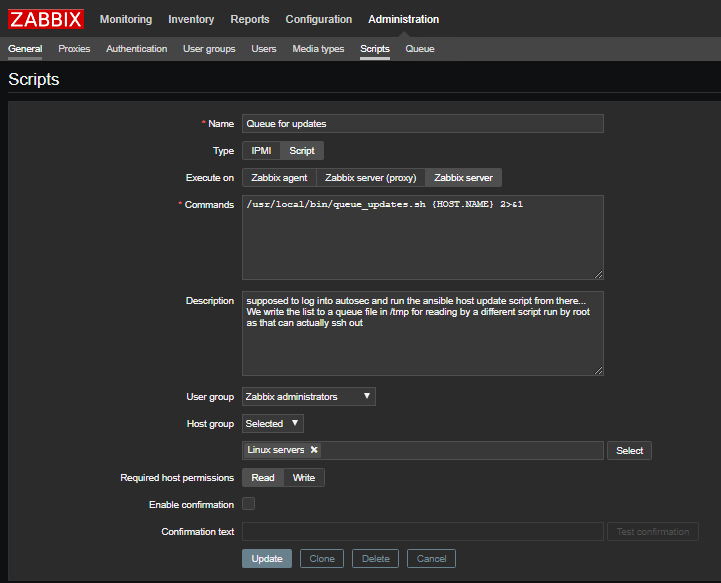
If you want to be able to trigger updates from the Zabbix scripts pop-up menu, add the queue_updates.sh script to your Zabbix install as shown in the screenshot below.
However, this is more a ‘nice to have’ as the fully-automated option uses a Zabbix ‘action’.
Automating System Updates via a Zabbix Action
So, the moment you’ve all been waiting for!
This is how you can use all of the above to make Zabbix do clever things so that you don’t have to.
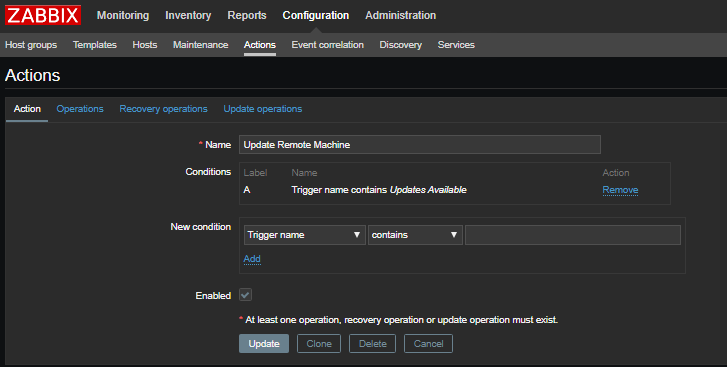
Essentially, as the template you imported earlier form the GitHub repo contains triggers for “Updates Available” and “Security Updates Available”, we now create an Action to run the system command queue_updates.sh with a parameter of the host that has triggered, if that trigger contains “Updates Available”. It does also seem that for the Action condition, case sensitivity is important, otherwise, it won’t work.
Add a new Action in your Zabbix interface that looks like the screenshots below.
And for the Operations tab:
NOTE: If you configure the Operation completely as below, you’ll get an email telling you the action has triggered, then a second one with the output of the ansible script, showing what it did.
The important part here is the “Run remote commands on current host” and that you execute it on the Zabbix Server so that it tries to do what it’s supposed to in the right place.
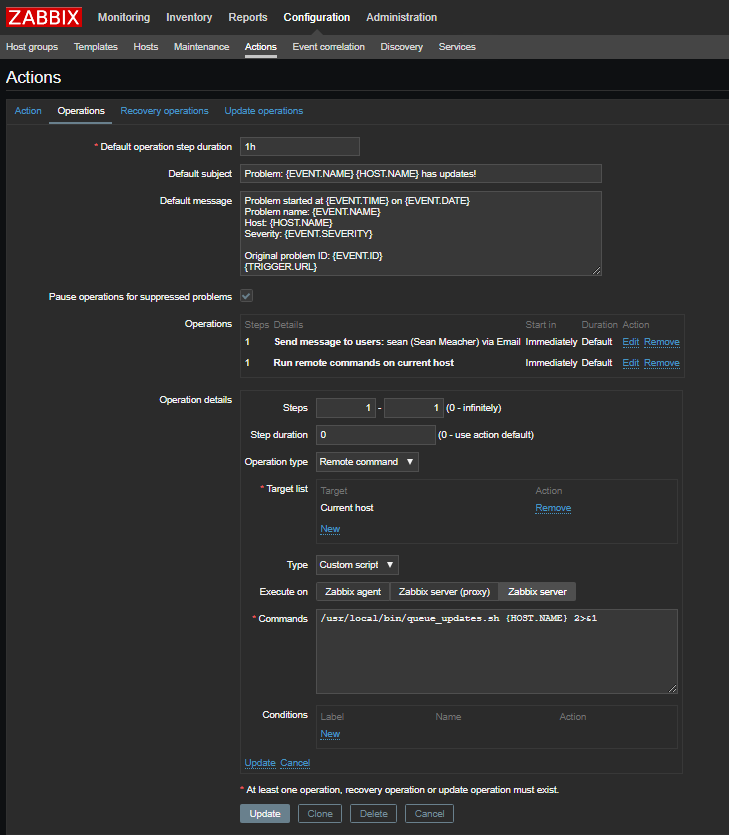
So now, the next time a machine announces it has updates, the process of running “apt upgrade” etc should be fully automated!
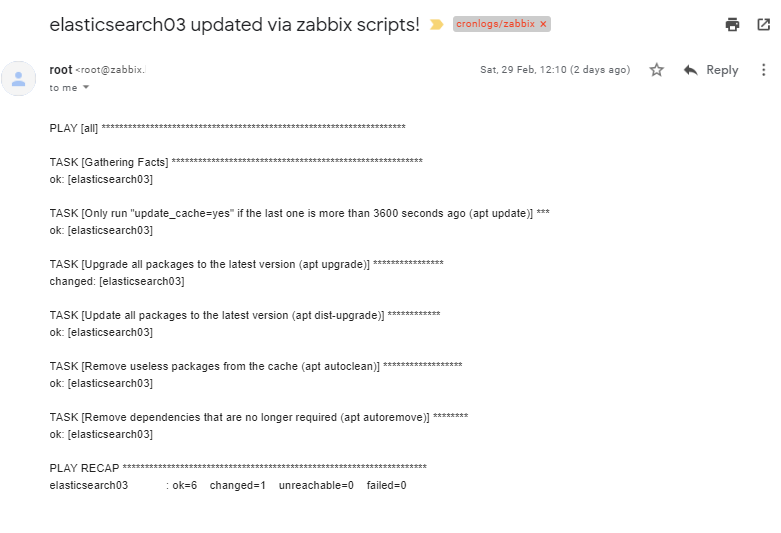
Also, if for some reason the updates via ansible don’t work correctly, this would show up in your email to let you know that you should do something about it.
Here’s an example for one that told me what it had done 
As you may also have noticed above, there is a trigger for “Reboot Required”, but we’ve chosen not to automate this in case “badThings” happen. 
This process could also be scaled up to use libnotify to trigger the process_updates_queue.sh script when the /tmp/updates_queue file changes instead of waiting for the next cron run.
If you find this useful, please let us know in the comments.